Trivoh CRM Help Center
Plain-step guides for customers, deals, email, AI Lead Agent, chatbots, segments, and CRM settings — in the order new teams usually need them.
Goal: Understand what Trivoh CRM is for and how to use this Help Center.
Trivoh CRM keeps your customers, deals, emails, calls and AI assistants in one place, so every conversation starts with the full picture.
Who this is for: Sales and support teams who use the CRM every day, and administrators who set up the organisation, email, AI and team access.
How to use this Help Center
- New to the app: read Getting started, then Customers and Companies.
- One answer: use search on the Help Center home, or jump to Troubleshooting and FAQ.
- Setting up AI: read AI Sales, Knowledge Base, then Website chatbot — in that order.
Words used in this guide
| Term | Meaning |
|---|---|
| Customer | A person you sell to or support. |
| Company | The organisation a customer works for. |
| Status | Where a customer is in your relationship (e.g. Active, Contacted, Customer). |
| Intent | Buying readiness: Cold, Warm or Hot. |
| Segment | A saved group of customers from rules, manual picks, or both. |
| Lead Agent | AI that finds leads, writes emails and waits for your approval. |
| Queue | Emails and actions the AI prepared for you to review. |
Goal: Sign in, connect email and AI, and add your first customers within about an hour.
Find your way around
The left menu groups the app into five areas:
| Area | Pages | Use it to |
|---|---|---|
| Main | Dashboard, Analytics, Sales Work, Customers, Companies, Segments, Pipelines, Activities, Tasks, Calls, Products | Manage people, deals and daily work |
| Messaging | Emails, Conversations, SMS | Write to customers and read replies |
| Knowledge and AI | Knowledge Base, Chatbots, AI Sales | Teach the AI and let it work for you |
| Marketing and support | Forms, Landing Pages, Help Desk, Calendar, Scheduler | Capture leads, answer tickets, book meetings |
| Admin | Team, Workflows, Settings | Control access, automation and configuration |
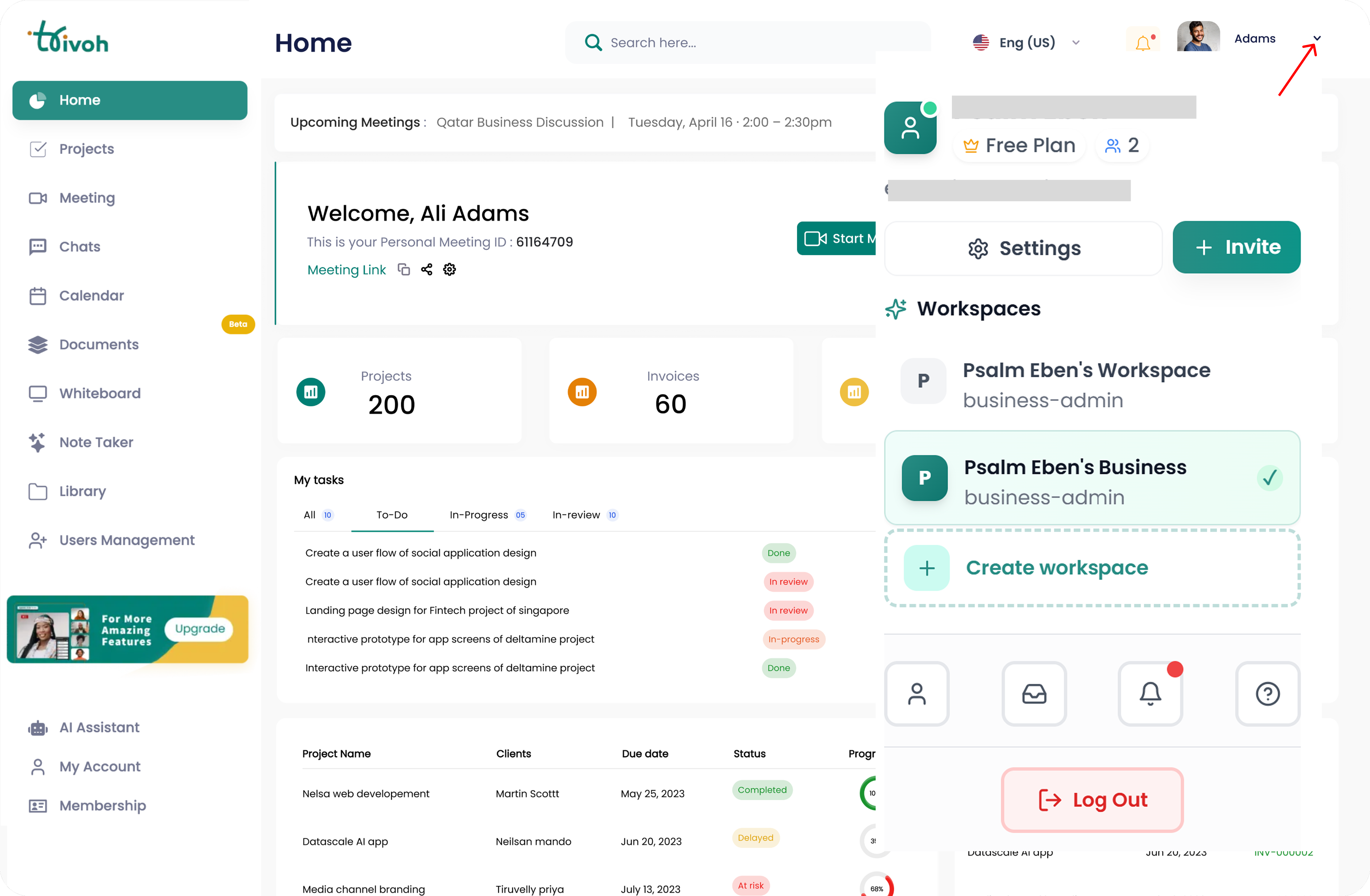
Administrators see every item. Other roles see what their permissions allow.
Set up your organisation (administrators)
- Settings → Organization — company name, website and contact details (the AI reads your website).
- Settings → CRM Fields — review statuses, intents and labels.
- Settings → Currency — choose your currency.
- Settings → Email & SMTP — connect the sending mailbox and use the test button.
- Settings → AI Settings — add the AI provider key.
- Team — invite colleagues with roles.

Set up yourself (everyone)
- Settings → Profile — name, photo, language.
- Settings → Email Signature — signature on outbound emails.
- Settings → Calendar Sync — tasks and meetings on your Trivoh calendar.
First-week checklist
- Email connection tested
- AI key saved and tested
- Website read in AI Sales → Settings (Learn from website)
- Statuses, intents and labels reviewed
- Teammates invited
- First customers imported or added
- One segment created
- First email sent and follow-up task set
Goal: Keep customer and company records clean so AI, campaigns and reports stay accurate.
Add and import customers
- Open Customers.
- Add customer for one person, or Import for CSV, Excel or Google contacts.
- Match columns, review the preview — duplicates are listed before you confirm.
Statuses, intent and labels
- Status — relationship stage; Contacted is set when a real email is sent (starting statuses move; advanced statuses stay).
- Intent — Cold, Warm, Hot.
- Labels — free tags for grouping.
Find and work with many customers
Use search and filters (status, intent, label, industry, location, segment, last contacted). Switch table, kanban or timeline. Tick rows for Edit, Add to segment, or Delete.
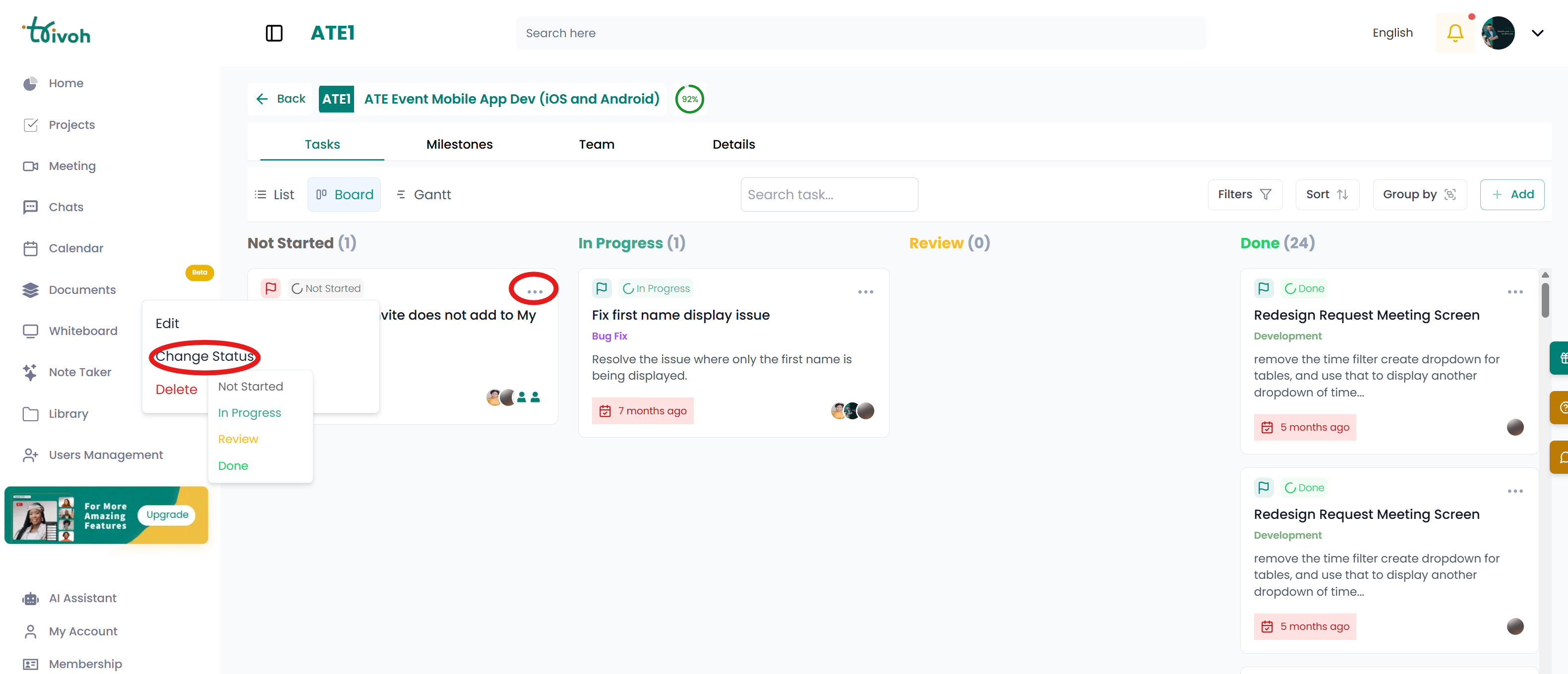
The customer page
Top bar: Call, Email, WhatsApp, Add from Trivoh Mail, Add to segment, Meeting, Edit. Below: Next actions, Relationship Health, and history.
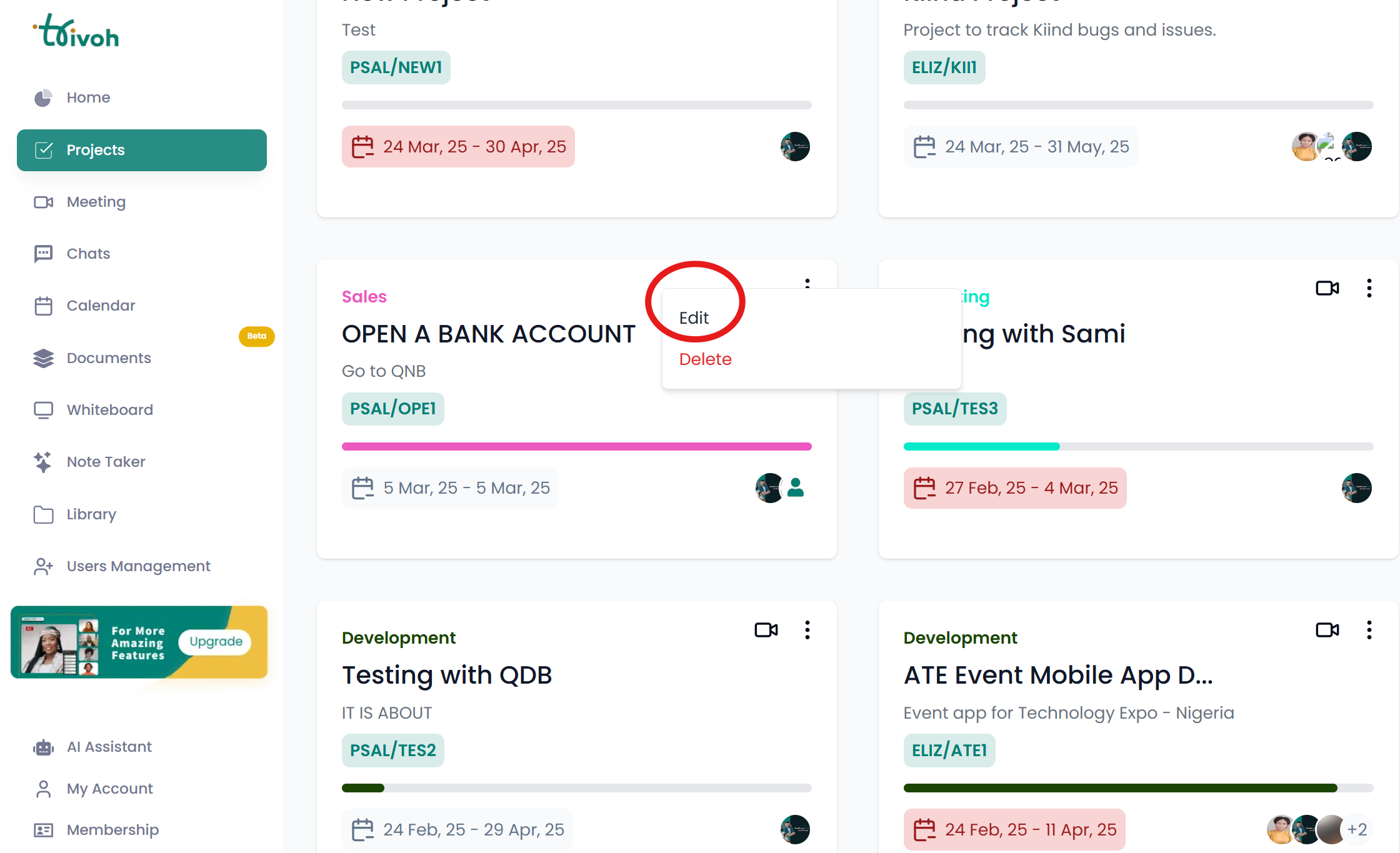
Companies
Companies groups customers by organisation. Company statuses: Prospect, Active, Inactive.
Common problems
- Missing status — administrator adds it in Settings → CRM Fields.
- Import columns unmapped — rename headers or map manually in preview.
Goal: Build saved groups for campaigns, SMS and AI audiences that stay up to date.
How membership works
Customers match rules, were added by hand, and were not removed. Removed customers stay out even if they match rules again.
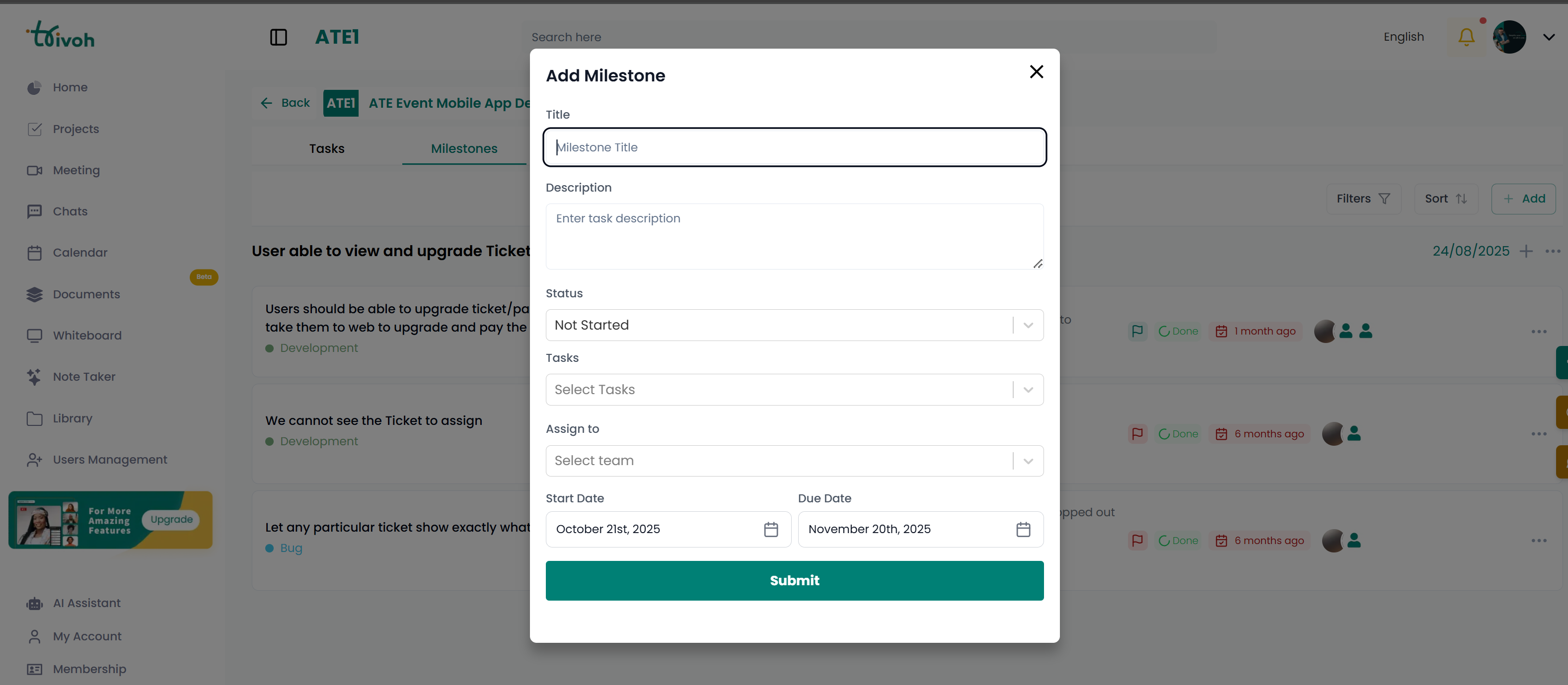
Create a segment
- Segments → New segment
- Name it and add filters (status, intent, labels, industry, etc.)
- Save — member count appears on the card.
Add customers from the Customers page
- Tick customers → Add to segment
- Pick or create segments → confirm
Counts refresh across Customers, Segments, SMS, Email campaigns and Calls.
Common problems
- Missing from count — check if they were removed earlier; add again.
- Stale count — refresh the browser; counts are live.
Goal: See who needs attention today and keep every customer with a next action.
Sales Work tiles
| Tile | Meaning |
|---|---|
| Overdue | Action date has passed |
| Due Today | Due before end of today |
| Engaged | Opened or replied recently — good time to reach out |
| No Next Action | Nothing planned — highest risk of being forgotten |
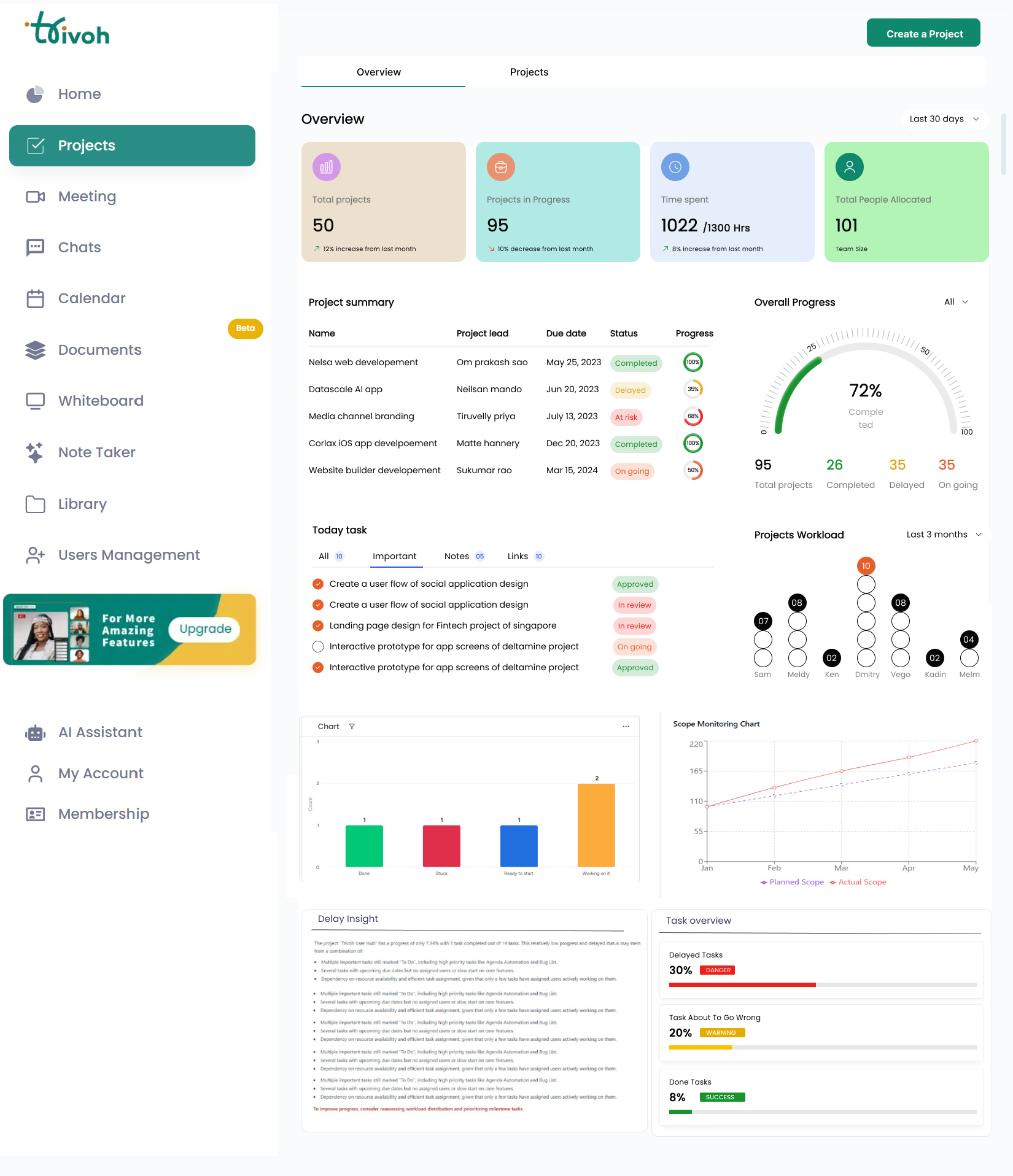
Tasks are titled after the person: e.g. Follow up with Theo Silver. Custom full titles you write are never renamed.
Tasks
- Tasks — List or Board
- New task — due date, priority, owner, link to customer/deal
- Completing a task prompts the next action
Calendar Sync: open tasks show as [Task] on Trivoh calendar; press Sync now after renames.
Common problems
- Calendar still says "Follow up" only — Settings → Calendar Sync → Sync now.
- Customer missing from Sales Work — create a next action for them.
Goal: Track opportunities on a board and move deals to won or lost.
| Pipeline type | Default stages |
|---|---|
| Deals | Lead Generated, Contacted, Negotiation, Closed Won, Closed Lost |
| Leads | New, Contacted, Qualified, Converted, Disqualified |
| Custom | To Do, In Progress, Done |
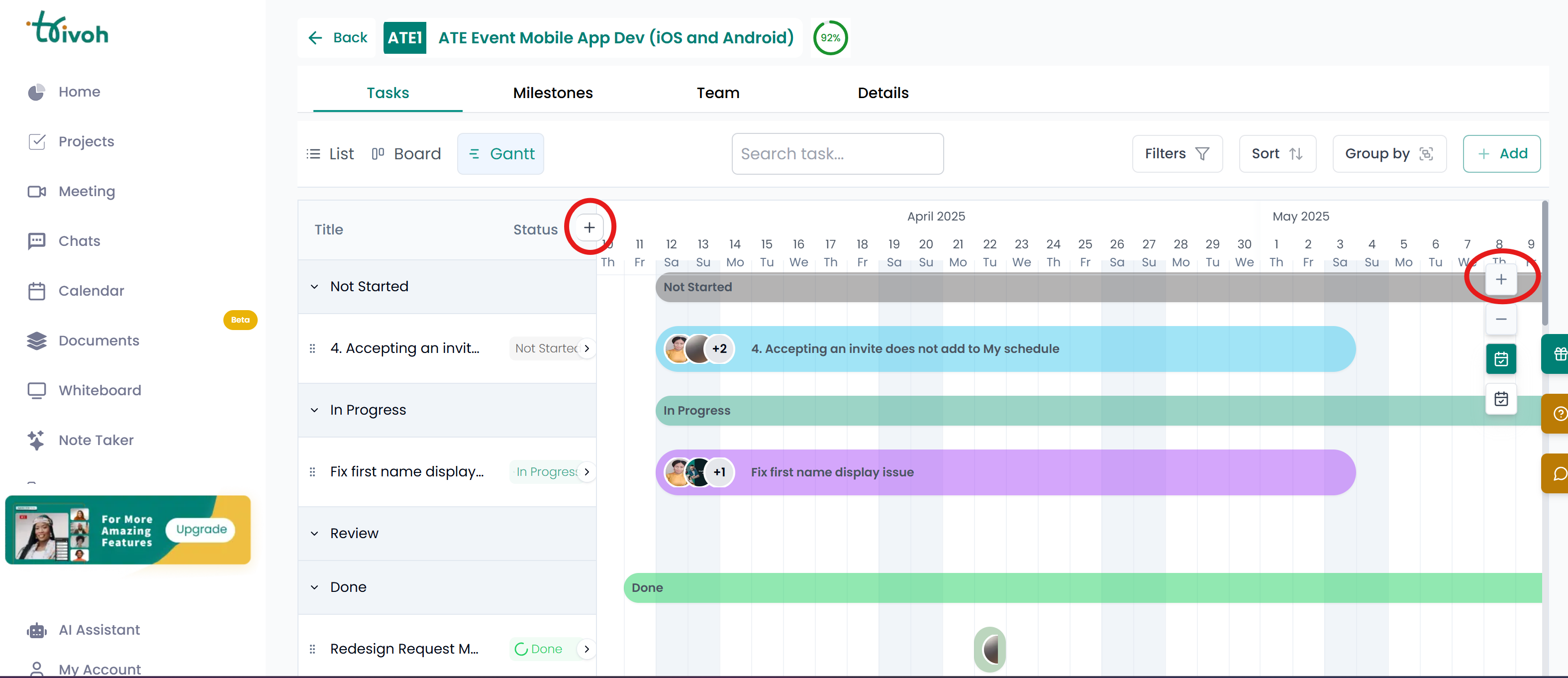
- Pipelines → New pipeline — type, name, stages
- Drag cards between stages; open drawer for value, owner, notes
- New deal from pipeline or customer page
Common problems
- Cannot delete Closed Won / Closed Lost — locked for reporting.
- Deal not on board — clear board filters.
Goal: Send one-to-one mail, use the AI generator, and run campaigns and sequences.
Tabs: Inbox, Compose, Drafts, Scheduled, Sent, Campaigns, Sequences — all via Settings → Email & SMTP.
Compose and send
- Emails → Compose (or Email on a customer)
- Recipient, subject, body — or use the AI generator
- Send, schedule, or save draft
AI email generator
- Describe the goal in the box
- Choose tone and goal → Generate
- Edit, then send — AI never auto-sends from Compose
The AI uses your company knowledge, customer history, and your prompt. Output is formal: greeting, short paragraphs, no markdown symbols.
Bulk campaigns
- Emails → Campaigns → New campaign
- Content (AI or Design Editor, merge tags like
{{first_name}}) - Audience: segment + filters; check estimated recipients
- Send now, schedule, or draft
Sequences
Automated steps with delays (e.g. day 0, 3, 7). Unsubscribe stops future steps.
Common problems
- SMTP error — test Settings → Email & SMTP.
- Generic AI copy — sharpen prompt; run Learn from website in AI Sales.
- 0 recipients — loosen segment/filters.
Conversations
Website chatbot and WhatsApp threads in one list. Replies and buying intent; chats link to customers when email is known.
SMS
- SMS — Messages or Campaigns
- Pick segment, filters, message — send or schedule
Requires telephony in Settings → Telephony.
Calls
| Tab | Use it to |
|---|---|
| Calls | History, length, AI summary |
| Agents | Configure AI call agents |
| AI Call | Start live agent call |
| Scheduled / Bulk | Plan or dial many contacts |
| Stats | Answered, missed, average length |
Common problems
- Agent cannot answer — add Knowledge Base / website learning.
- Calls fail — check Settings → Telephony.
Goal: Find leads, draft emails, and approve every send from the Queue.
| Tab | What it holds |
|---|---|
| Agents | Saved agents and run |
| Queue | Drafts awaiting approval |
| History | Past runs and outcomes |
| Tools | Search, email leads, scoring |
| Settings | Apollo, templates, rules, website |
Connect Apollo
- Create a master API key in Apollo
- AI Sales → Settings — Apollo.io, paste key, Test connection
- Enable Reveal e-mail addresses
Lead search flow
Search → Apollo results → reveal emails → research → draft → Queue → you review → approve → send → customer becomes Contacted.
Review in the Queue
Tabs: E-mail (edit / rewrite), Why the agent wrote this, History. Approve with Teach the agent to save your edits as examples.
Common problems
- No emails on leads — reveal on + Apollo credits.
- 403 / master key — use master API key only.
- Empty Queue — check History steps; SMTP required.
Goal: Give every AI feature accurate facts about your business.
Add articles
- Knowledge Base → Add article — question, answer, category
- Import files or crawl website from chatbot settings
- Hand-edited entries are protected from auto-overwrite
Learn from website (company knowledge)
- AI Sales → Settings → Company knowledge from your website
- Enter URL → Learn from website
- Review generated articles; fix in Knowledge Base
Where knowledge is used
Compose, campaigns, Lead Agent, website chatbot, AI call agent, and social agent — all ground answers in approved articles.
Common problems
- Chatbot cannot answer — add article or re-crawl.
- Empty company profile — crawl site or press Read again.
- Wrong fact — edit the article directly.
Goal: Answer visitors from your Knowledge Base and embed the widget on your site.
- Chatbots → New chatbot — channels, tone, knowledge
- Crawl website → test in preview
- Switch on → copy embed script
Embed before </body>:
<script src="https://YOUR-BACKEND-ADDRESS/widget/YOUR-CHATBOT-ID.js" async></script>Voice chat
Microphone button — browser permission once; spoken + text reply.
Chats appear in Conversations and link to customers when email is provided.
Common problems
- No bubble — script on page, chatbot on, CSP allows CRM host.
- Voice server error — try Chrome/Edge or type instead.
- No reliable answer — add Knowledge Base article.
Goal: Configure CRM fields, email, telephony, AI and team roles.
| Tab | Who | Use it to |
|---|---|---|
| Profile / Email Signature / Calendar Sync | Everyone | Personal preferences |
| Organization, Currency, CRM Fields, AI, Email & SMTP, Telephony | Admin | Org-wide setup |
| Team | Admin / managers | Invite users and roles |
CRM Fields
Add statuses, intents and labels — they appear immediately in forms, filters, segments and campaigns.
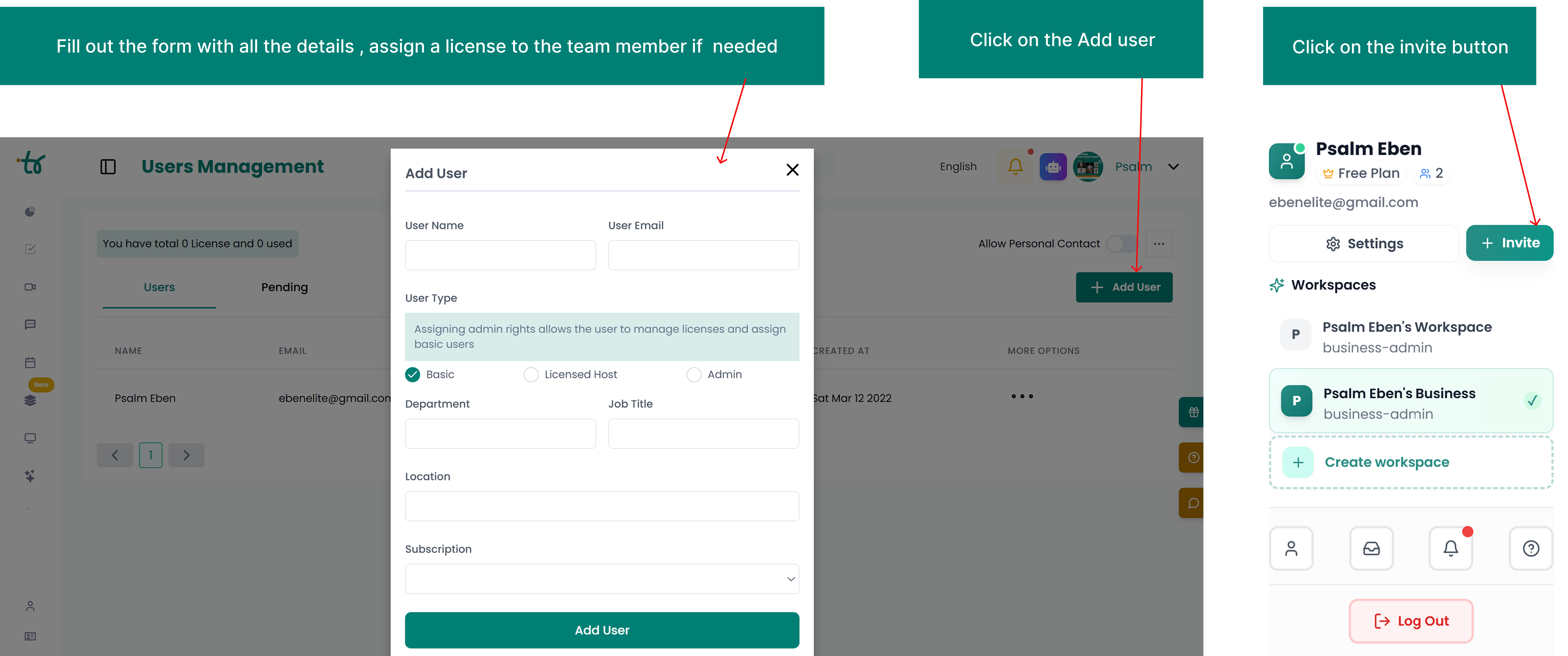
Team
Team → Invite — email and role. Permissions hide menu items users cannot access.
Workflows & webhooks
Workflows automate tasks (named after customers) when triggers fire. Webhooks send events to external systems.
Common problems
- Missing admin tabs — ask your administrator.
- Page blocked — role lacks permission.
Goal: Fix the four usual blockers: email, AI key, Apollo key, missing knowledge.
| Problem | Likely cause | What to do |
|---|---|---|
| Email won't send | SMTP wrong | Settings → Email & SMTP → test |
| Generate does nothing | No AI key / AI off | Settings → AI Settings |
| Apollo 403 | Not a master key | Create master API key in Apollo |
| Leads without email | Reveal off / no credits | Enable reveal; check credits |
| Empty Queue | No emails / no SMTP | History steps; fix SMTP |
| Chatbot no answer | No article | Add KB or Learn from website |
| No chat bubble | Script missing | Re-paste embed; chatbot on |
| Wrong segment count | Manual removes / rules | Open segment rules |
FAQ
- Does the AI send alone? No — Lead Agent items need approval; Compose is manual send.
- Can the AI invent offers? It should use website/KB facts; always review before approve.
- Why Contacted? A real email was sent; advanced statuses unchanged.
- Forget bad AI edits? AI Sales → Settings → forget learned edits.